

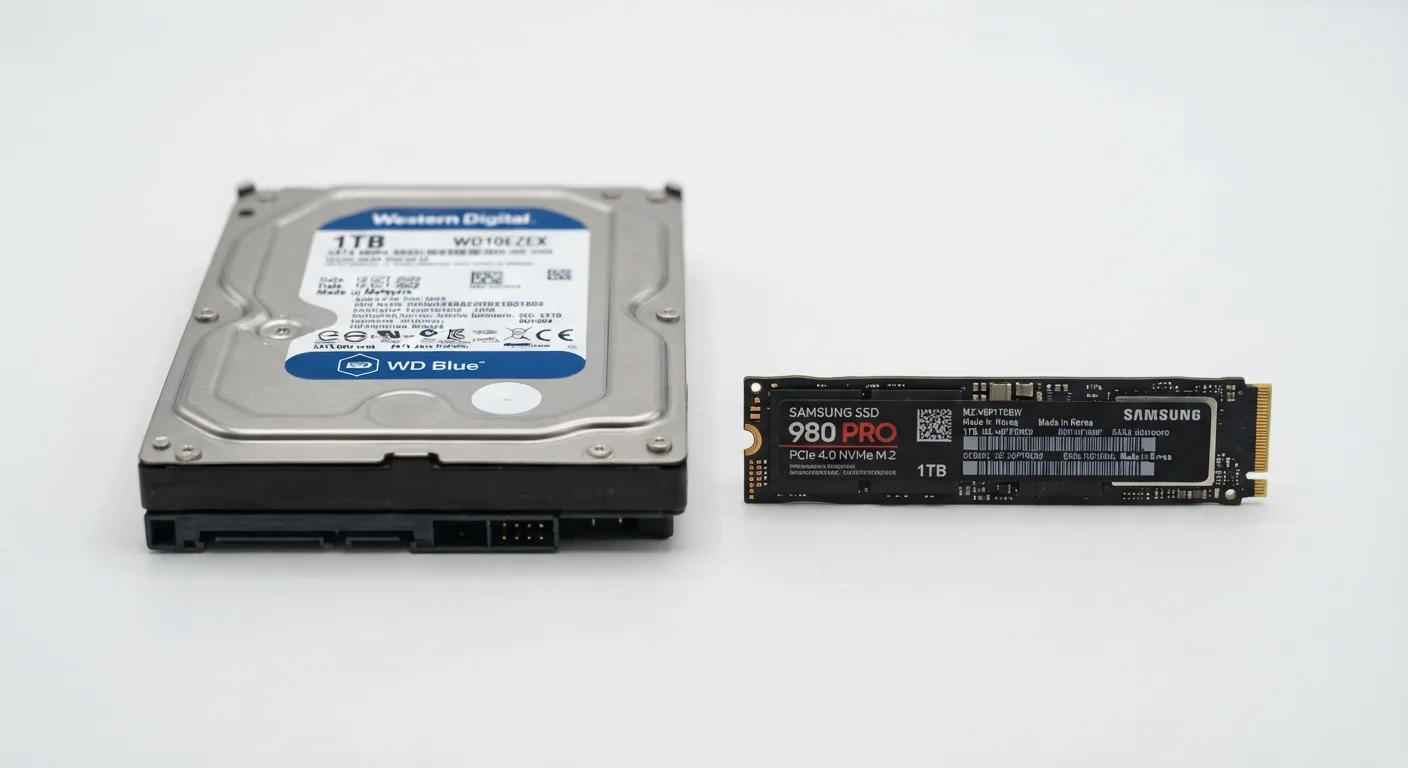
Key Takeaways
Option A
SSD (Solid-State Drive)
The faster, more durable modern standard.
Best for: Users who prioritize speed, reliability, and quiet operation in laptops, desktops, or portable devices.
Option B
HDD (Hard Disk Drive)
The high-capacity, budget-friendly legacy option.
Best for: Users who need large amounts of storage capacity at a lower cost, typically for archiving or desktop backups.
If you want a faster, more responsive everyday computer
SSD (Solid-State Drive)
SSDs dramatically reduce boot times and application load speeds, making the overall computing experience feel more immediate and fluid.
If you need to store large archives of files on a tight budget
HDD (Hard Disk Drive)
HDDs deliver far more gigabytes per dollar, making them cost-effective for storing large media libraries, backups, or infrequently accessed data.
If you use a laptop and care about battery life and physical durability
SSD (Solid-State Drive)
With no moving parts, SSDs consume less power and are far less vulnerable to damage from drops or vibration during transport.
If you're adding a secondary internal drive to an existing desktop
HDD (Hard Disk Drive)
A secondary HDD is an affordable way to expand overall storage for files and media without the premium cost of a large SSD.
How Each Drive Actually Works
Understanding the physical difference between SSDs and HDDs makes the performance gap much easier to grasp.
A hard disk drive (HDD) stores data on one or more spinning magnetic platters. A read/write arm moves across the platter surface to locate and record information — much like a record player finding a track. Because this involves mechanical movement, there's a small but real delay each time the drive needs to find data, particularly when that data is scattered across different parts of the platter.
A solid-state drive (SSD) has no moving parts at all. Data is stored in interconnected flash memory chips — the same category of technology used in USB thumb drives, just considerably faster and more sophisticated. Because the drive accesses any piece of stored data electronically rather than mechanically, retrieval is nearly instantaneous regardless of where the data physically resides.
This distinction — mechanical movement versus electronic access — is the root cause of nearly every performance and durability difference between the two.
| Criterion | SSD | HDD |
|---|---|---|
| Technology | Flash memory chips | Spinning magnetic platters |
| Moving parts | None | Yes (platter, read/write arm) |
| Typical boot time | Under 15 seconds | 30–60+ seconds |
| Durability (physical shock) | High resistance | Vulnerable when active |
| Power consumption | Lower | Higher |
| Cost per gigabyte | Higher | Lower |
| Noise | Silent | Audible (spin, seek sounds) |
| Best use case | OS, apps, everyday performance | Bulk storage, archiving |
What the Difference Means in Everyday Use
For most people, the most obvious effect of drive type shows up in how quickly a computer starts and how fast programs open. A machine running an SSD can boot its operating system in under 15 seconds in typical conditions; the same system with an HDD often takes 30–60 seconds or longer, depending on age and configuration.
Application launch times, file transfers, and how quickly a computer responds when running multiple programs are all meaningfully affected by drive speed. Tasks like opening a large photo-editing project, loading a video game level, or searching through a file library feel substantially snappier on SSD-equipped devices.
~5×
Typical SSD read speed advantage over HDD
Sequential read speeds for mainstream SSDs commonly exceed 500 MB/s, while typical HDDs average around 100–150 MB/s.
0
Moving parts inside an SSD
The absence of mechanical components is the primary reason SSDs outperform HDDs in shock resistance and access speed.
Durability is another practical consideration. Because HDDs rely on spinning platters and a delicate read/write arm, a hard bump or drop while the drive is active can cause physical damage and data loss. SSDs, with no moving components, are far more resistant to physical shock — a meaningful advantage for laptop users.
Power consumption also differs. SSDs generally draw less power than HDDs, contributing to longer battery life in portable devices. For more on how performance choices at the hardware level ripple into broader device behavior, see our explainer on local vs. cloud-dependent devices.
Capacity, Cost, and the Case for HDDs
SSDs hold genuine advantages in speed and durability, but HDDs still serve a clear purpose: providing large amounts of storage at a lower per-gigabyte cost.
As a general pattern, HDDs have historically offered significantly more storage capacity per dollar than SSDs, though the gap has narrowed over time as SSD manufacturing costs have fallen. For users who need several terabytes of space — for video production archives, large music libraries, or long-term file backups — HDDs can make that capacity economically feasible.
Many desktop computers use a hybrid approach: an SSD as the primary drive (holding the operating system and frequently used applications) paired with a larger HDD for bulk file storage. This arrangement tries to capture the speed benefits of SSDs where they matter most while keeping overall cost manageable.
It's also worth noting that storage type is a separate question from storage amount. If you're sorting out what storage means versus what memory does, our RAM vs. storage breakdown explains the distinction clearly. And if you're weighing where to keep your files altogether, the cloud vs. local storage guide covers those trade-offs.
Neither Drive Type Is Immune to Failure
SSDs and HDDs both fail eventually — they simply tend to fail in different ways and for different reasons. SSDs can experience sudden failure without much warning; HDDs often show early signs like unusual noise or slowdowns. Regardless of which drive type a device uses, maintaining regular backups — whether to an external drive or a cloud service — remains the single most reliable safeguard against data loss.