

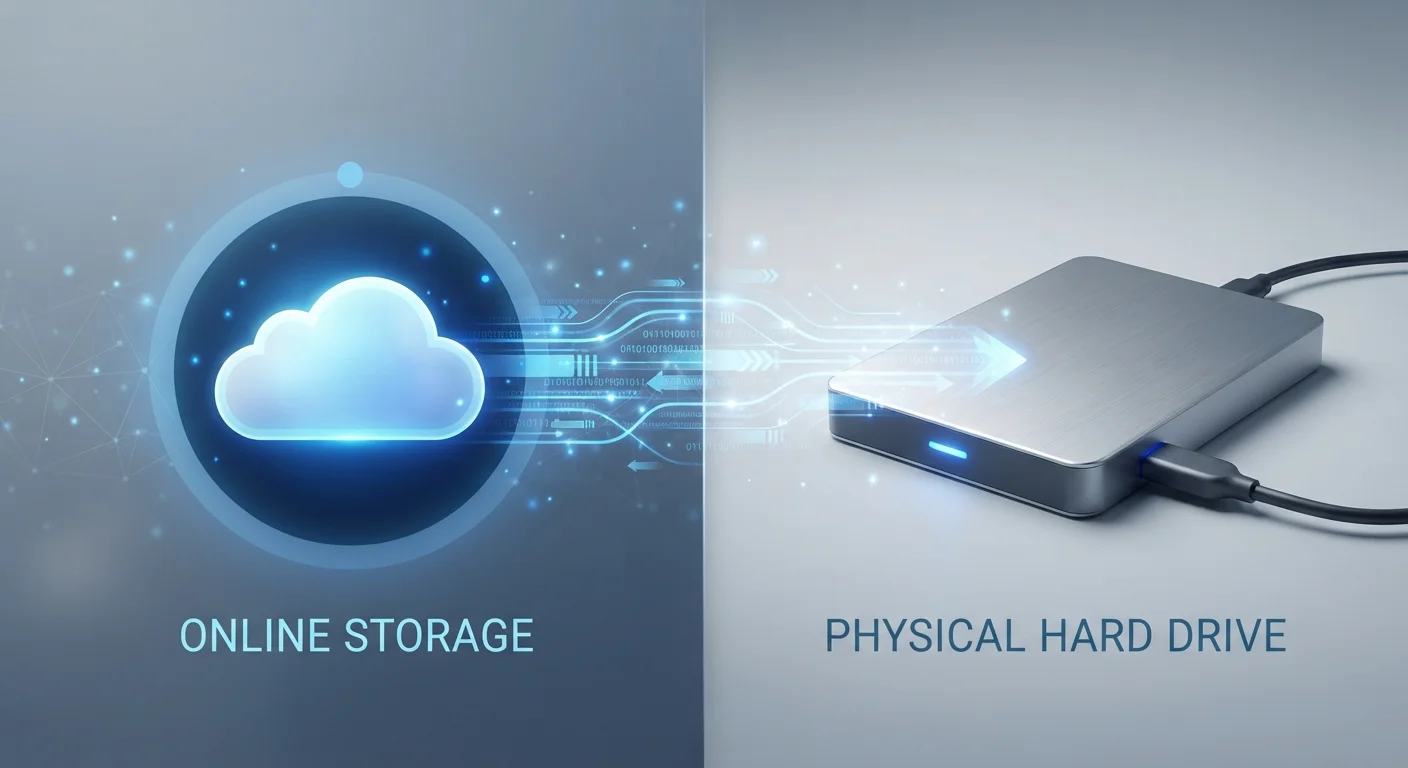
Key Takeaways
Option A
Cloud Storage
The anywhere-access, subscription-based approach.
Best for: People who need files available across multiple devices or want automatic off-site backup without managing hardware.
Option B
Local Storage
The keep-it-in-your-hands, one-time-cost option.
Best for: People who prioritize full data control, offline access, or have large file collections that would be expensive to store in the cloud.
If you work across multiple devices or locations
Cloud Storage
Cloud storage syncs files automatically so they're available on any device without manual transfers. It eliminates the need to carry a physical drive.
If you handle sensitive personal or business files
Local Storage
Keeping files on a device you physically control means no third party holds your data on their servers, reducing exposure to breaches or policy changes.
If you store very large media libraries
Local Storage
Cloud storage costs scale with capacity; storing terabytes of video or RAW photos locally is typically far cheaper than equivalent cloud subscription tiers.
If reliable internet access isn't guaranteed
Local Storage
Local files are accessible offline at full speed regardless of connectivity. Cloud-only files become unreachable when internet is unavailable.
If automatic backup and disaster recovery matter most
Cloud Storage
Cloud services continuously back up files off-site, so a stolen or damaged device doesn't mean lost data. Local backups require deliberate, manual upkeep.
What Each Storage Type Actually Does
Both cloud and local storage serve the same core purpose — holding your files — but they do it in entirely different ways.
Cloud storage saves your files on remote servers operated by a provider. When you upload a photo or document, it travels over the internet to those servers. You retrieve it the same way. Services in this category typically synchronize files automatically across devices registered to your account.
Local storage keeps files on hardware you physically own: the internal drive in your laptop, a USB drive, an external hard disk, or a NAS (network-attached storage) device on your home network. No internet connection is needed to access what's stored there.
Understanding which physical medium holds your local files — such as an SSD versus an HDD — also affects speed and durability. See our SSD vs. HDD breakdown for a plain-language explanation of those differences.
| Criterion | Cloud Storage | Local Storage |
|---|---|---|
| Accessibility | Any device with internet | Requires physical access to hardware |
| Cost model | Ongoing subscription | One-time hardware purchase |
| Offline access | Limited or none | Full, always available |
| Privacy control | Provider holds your data | You hold your data |
| Automatic backup | Yes, continuous sync | Manual or self-configured |
| Large storage capacity cost | Scales up with subscription | Fixed hardware cost |
| Risk of data loss | Provider outage or account loss | Hardware failure or theft |
Privacy, Security, and Who Controls Your Data
For many people, privacy is the deciding factor. When your files live on a cloud provider's servers, that company holds copies of your data. Most reputable providers encrypt files in transit and at rest, but they may be legally required to hand data over to authorities under a valid court order. Their own terms of service may also grant limited rights to scan content for policy compliance.
Local storage keeps data physically within your own walls. You decide who can access the hardware. That said, local storage has its own vulnerabilities: a lost laptop, a stolen external drive, or a hard drive failure can mean total, unrecoverable data loss unless you maintain separate backups.
If your home network also runs smart devices, the security habits around your connected environment matter too. Our article on smart home network security covers practices that apply broadly to protecting data on shared home networks.
60%+
US adults using cloud storage
Pew Research Center data indicates a majority of American adults store data in the cloud, up sharply from earlier in the decade.
~3–5 years
Average HDD lifespan
Industry estimates from drive manufacturers and data recovery firms suggest most spinning hard drives have a practical life of three to five years under normal use.
Cost, Capacity, and Practical Trade-offs
Cloud storage typically uses a subscription model. Free tiers exist but cap out at modest amounts — usually 5–15 GB — which fills quickly with photos and documents. Larger plans bill monthly or annually and scale in cost as your storage needs grow.
Local storage involves an upfront hardware purchase with no recurring fees. A multi-terabyte external drive costs a fixed amount and can hold that capacity indefinitely. For large media collections, the long-term math often favors local.
Reliability, however, cuts both ways. Cloud providers run redundant data centers, making server failure unlikely — but service outages, account lockouts, or a provider shutting down are real possibilities. Local drives — especially spinning hard drives — have a finite lifespan and can fail without warning.
The question of what happens to your files when you stop using a service is also worth considering. If you've ever wondered what data lingers after you stop using a platform, our article on what happens to your data when you delete an app explains what often stays behind.
For a deeper look at how local versus cloud architecture affects everyday smart devices — not just file storage — see our explainer on local vs. cloud-dependent smart devices.
The Hybrid Approach Works for Most People
You don't have to choose exclusively one option. Many households keep active working files in the cloud for convenience, while archiving large or sensitive files on a local drive. A separate local backup of cloud-stored files adds a safety net against account disruptions. Matching each storage method to the right type of file — rather than treating it as all-or-nothing — is a practical middle ground.