

Key Takeaways
Why This Confusion Is So Common
Ask someone how much memory their laptop has and they might quote you a storage figure — or vice versa. This mix-up is understandable: both RAM and storage are measured in gigabytes (GB), both live inside your device, and both affect how well it runs. But they do completely different jobs, and confusing the two leads to poor troubleshooting, misguided upgrade decisions, and unnecessary frustration.
RAM stands for Random Access Memory. Think of it as your device's short-term working space — the mental desk where active tasks happen. Storage, on the other hand, is the long-term filing cabinet: it holds everything even when the device is off, from your photos and documents to the operating system itself.
Understanding this distinction is foundational for making sense of almost any device performance issue. For a complementary breakdown of how the two main types of storage differ from each other, see our guide to SSD vs. HDD.
Assuming 'memory' and 'storage' mean the same thing.
Why it happens: Both are measured in gigabytes and marketed under vague terms like 'memory,' making them seem interchangeable in everyday language.
Trying to fix sluggish performance by deleting files to free up storage.
Why it happens: People see a 'low memory' or slowdown warning and assume clearing disk space will help — because storage and memory sound synonymous.
Buying a device based solely on storage capacity, ignoring RAM.
Why it happens: Large storage numbers (256GB, 1TB) are prominently advertised and feel impressive, while RAM figures receive less marketing emphasis.
Believing that upgrading storage will speed up a slow device.
Why it happens: Storage upgrades — especially switching from a hard drive to an SSD — can genuinely improve load times, which leads some to assume all storage upgrades fix all performance problems.
Thinking 'storage full' and 'out of memory' describe the same problem.
Why it happens: Operating systems and apps sometimes use memory-related language loosely, and error messages aren't always clear about which resource is exhausted.
What Each One Actually Does
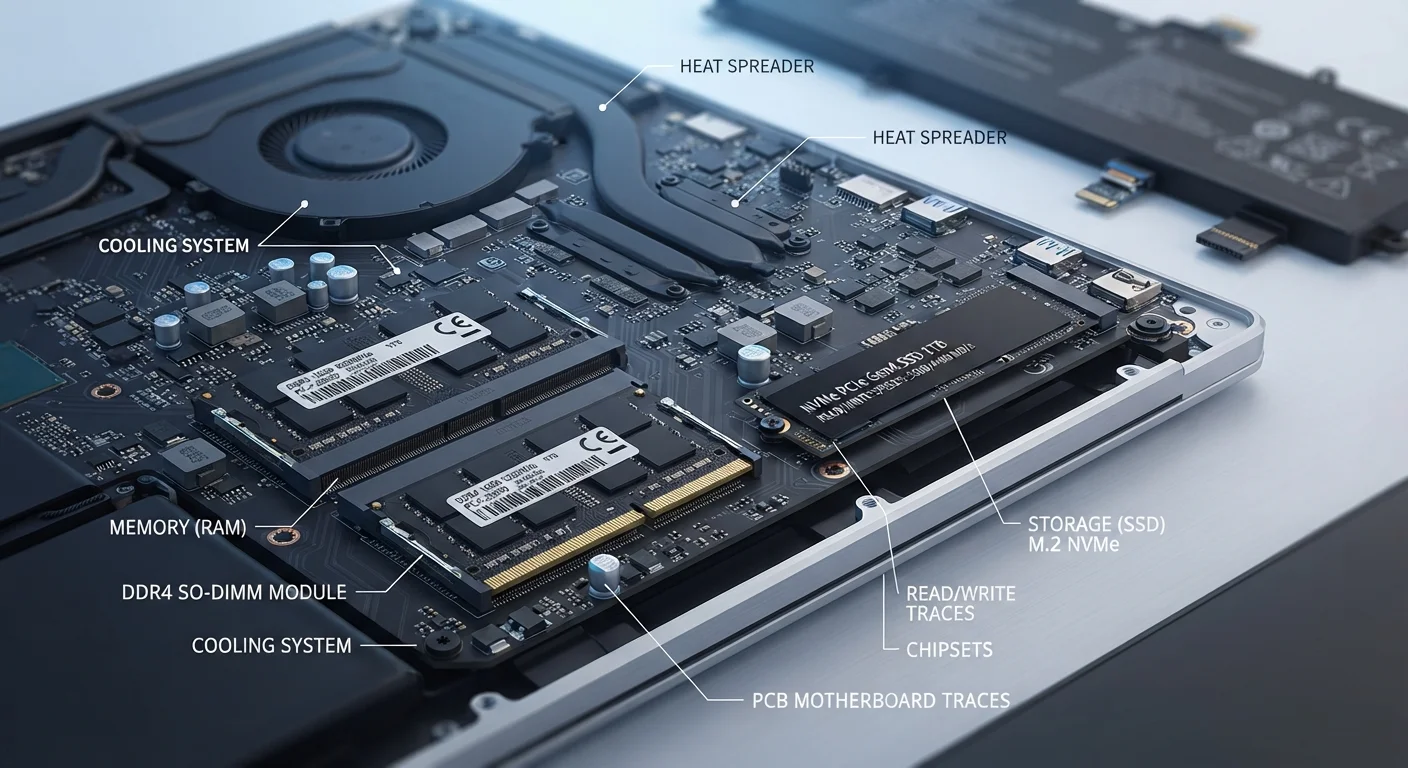
When you open an app, your device pulls the necessary data from storage into RAM so your processor can work with it quickly. RAM is fast but volatile — everything in it disappears the moment power is cut. Storage is slower by comparison but persistent; your files remain intact whether the device is on or off.
8–16 GB
Typical RAM range in modern consumer laptops
Most mainstream laptops sold for general use ship with between 8GB and 16GB of RAM, according to common manufacturer specifications across the industry.
~10×
Speed difference: RAM vs. SSD access
RAM operates at speeds roughly ten times faster than even a modern solid-state drive, which is why the operating system prioritizes keeping active data in RAM whenever possible.
A common analogy: RAM is your physical desk surface. The larger it is, the more you can spread out and work on simultaneously without constantly shuffling papers. Storage is the filing cabinet beside the desk — it holds everything, but you have to retrieve items before you can work on them.
When your RAM fills up, the operating system compensates by using a portion of storage as overflow — a process called virtual memory or a swap file. This is significantly slower than true RAM, which is why devices feel sluggish when too many apps are open at once. It's not a storage problem; it's a RAM bottleneck.
If you're also thinking about where your saved files should live beyond the device itself, our piece on cloud storage vs. local storage walks through the trade-offs clearly.
Don't Conflate Upgrade Solutions
Adding more storage to a RAM-starved device won't make it feel faster in everyday use. Similarly, freeing up disk space won't resolve problems caused by too many apps competing for RAM. Misidentifying the bottleneck leads to spending money on the wrong upgrade. Always check live resource usage before deciding what to change.