

Key Takeaways
Why Setup Is the Most Important Privacy Moment
Most people rush through the initial setup of a new smartphone — tapping "Next" and "Agree" until they reach the home screen. That speed has a cost. The setup process is where operating systems ask for permissions, offer to sync data to the cloud, and invite you to opt into location tracking, personalized advertising, and diagnostic sharing. Accepting defaults without reviewing them can mean your device is collecting and transmitting far more than you'd choose if asked clearly.
This guide walks through each meaningful decision point in sequence, so you can make active, informed choices rather than accepting whatever is configured for convenience. The steps apply broadly to both major smartphone platforms — Android and iOS — though the exact menu names will differ slightly by device and software version.
For a broader look at securing other devices in your home, see our checklist for setting up new devices securely.
What you will need
Step-by-Step: Privacy-First Phone Setup
Follow these steps in order. Some will appear during the guided setup wizard; others are best handled in the Settings app immediately after the wizard completes.
Choose a strong screen lock before anything else
The first prompt in most setup wizards asks you to set a screen lock. Choose a PIN of at least six digits, a strong alphanumeric passcode, or — where available — a biometric method paired with one of those. Avoid four-digit PINs and simple swipe patterns, which offer minimal protection if your device is lost.
Be selective about account sign-ins
You will be prompted to sign in with or create an account tied to the platform — Apple ID or Google Account. This step is largely required for app installation and device features, but you can often skip optional secondary sign-ins, such as manufacturer accounts or third-party services offered during setup. Each account you connect is another entity with access to activity data from your device.
Review location services settings
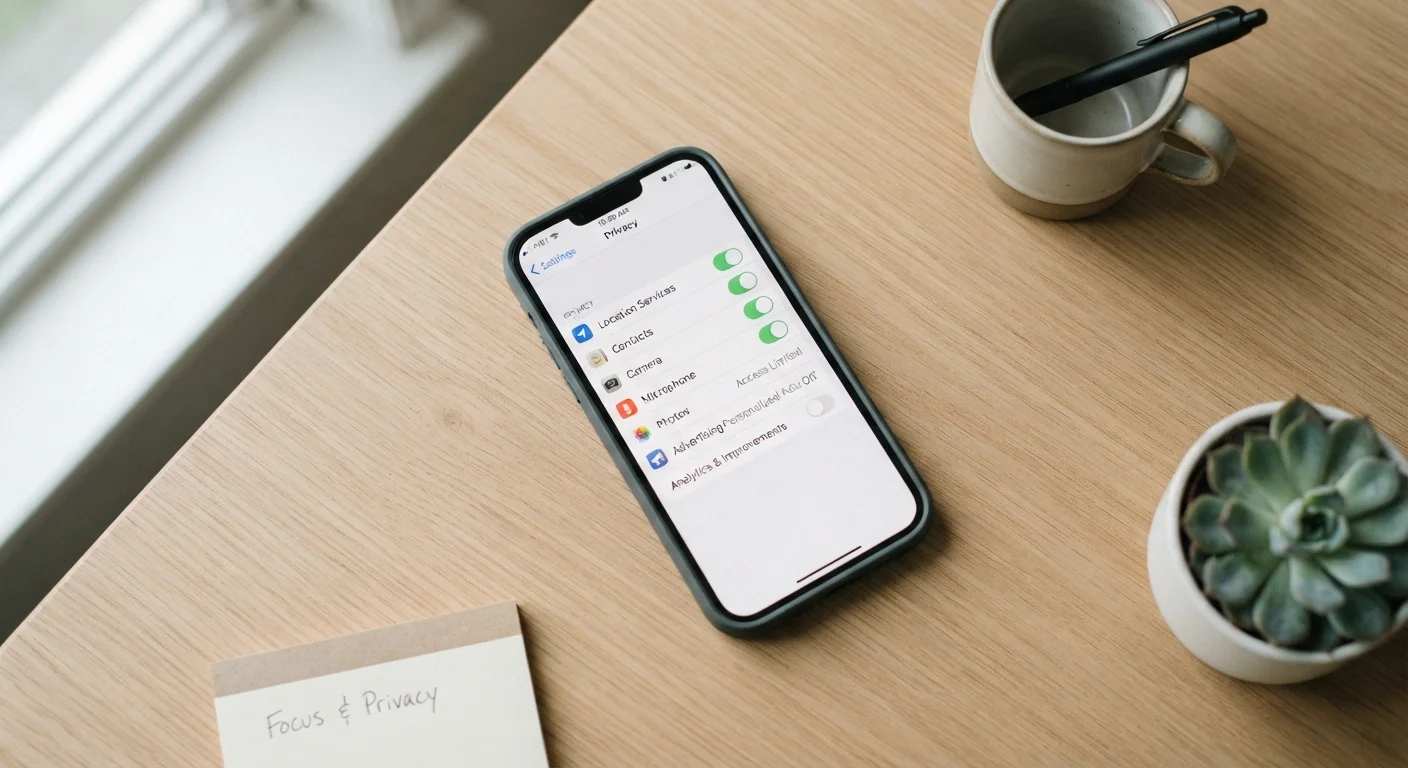
When asked about location access, choose the most restrictive option the wizard offers — typically "While using the app" or "Ask every time" for individual apps, rather than always-on. System-level location can often be left enabled for essential features like emergency services, but enabling it broadly for all apps by default is unnecessary for most users.
Decline or limit diagnostic and usage data sharing
Both major platforms offer to send usage statistics, crash reports, and analytics back to the operating system developer or manufacturer. This data can include information about how you use your device, which apps you open, and how long you use them. Opting out or choosing the minimal sharing option has no effect on your phone's performance.
Opt out of personalized advertising
Look for prompts related to ad personalization or targeted ads — these may appear within the setup wizard or in an early notification. Opting out means ads may still appear in free apps, but they will not be targeted based on a profile built from your device activity. On Android, this is found under Settings > Privacy > Ads; on iOS, under Settings > Privacy & Security > Apple Advertising.
Configure backup settings deliberately
Cloud backup is useful — it protects your data if your phone is lost or damaged. Enable it, but review what is being backed up. Sensitive items such as health data, photos, and messages each have individual backup toggles on most platforms. Enable encryption for backups wherever the option exists, and confirm where your backup data is stored and under whose terms.
Audit app permissions after the first launch
Once setup completes and you begin installing or launching pre-installed apps, each will typically request permissions — camera, microphone, contacts, notifications. Deny any permission that doesn't align with the app's core function. A weather app does not need microphone access; a flashlight app does not need your contacts. You can manage all permissions centrally in your device's Settings.
Defaults Favor Convenience, Not Privacy
Smartphone operating systems are designed to work smoothly out of the box, which means defaults lean toward data sharing, not data minimization. Accepting every default setting during setup is not a neutral act — it is an active agreement to a specific level of data collection. Taking an extra 20–30 minutes to review each step meaningfully changes how much information your device shares going forward.
After Setup: Ongoing Habits That Matter
A privacy-conscious setup is the foundation, not the finish line. Over time, newly installed apps will request permissions, and operating system updates may introduce new data-sharing options that default to "on." Set a reminder to audit app permissions every few months — check which apps have access to location, microphone, camera, and contacts, and remove access that no longer makes sense.
Be aware that deleting an app doesn't automatically erase data the app has already collected or stored on the developer's servers. Our guide on what happens to your data when you delete an app explains what typically stays behind and how to request proper removal.
Broader digital habits also play a role. Password reuse, skipping software updates, and over-permissioning apps are among the routines covered in habits that quietly undermine your online privacy. If your phone connects to a smart home network, the same security discipline applies — see security habits for shared home networks for relevant guidance.
Privacy Policies Are Worth a Quick Scan
When an app or service presents its privacy policy during setup, most people scroll past it. A few targeted sections — what data is collected, who it's shared with, and how to request deletion — can reveal a lot quickly. Our guide on reading a privacy policy without losing your mind breaks down which sections actually matter and what red flags to look for.